How to Copy a Table from an Image to Excel
You have a table stuck in an image — maybe a screenshot from a report, a photo of a whiteboard, or a chart from a presentation. You need that data in Excel. Typing it out manually is painful and error-prone. Here's how to do it faster.
Method 1: Retype it manually
The brute-force approach. Open Excel, look at the image, type each cell. For a 5-row table this takes a few minutes. For a 50-row table with numbers, it's 30+ minutes and you'll almost certainly introduce errors.
Best for: Tiny tables (under 10 cells) where you need 100% control.
Method 2: Excel's built-in "Data from Picture"
Excel 365 (Windows and Mac) has an "Insert Data from Picture" feature. It uses OCR to read the image and attempts to structure it into cells. It works reasonably well for clean, printed tables, but struggles with screenshots, low-contrast text, or complex headers.
Best for: Clean, printed tables when you already have Excel open.
Method 3: Screenshot and extract with TableGrab
Install the TableGrab Chrome extension, screenshot the table, and get structured data back in seconds. You can review each cell, fix any OCR errors, then download directly as an XLSX file or copy as TSV to paste into Excel.
Unlike Excel's built-in tool, TableGrab handles screenshots with background colors, gridlines, alternating row shading, and complex multi-row headers. It also works in any browser — you don't need Excel installed.
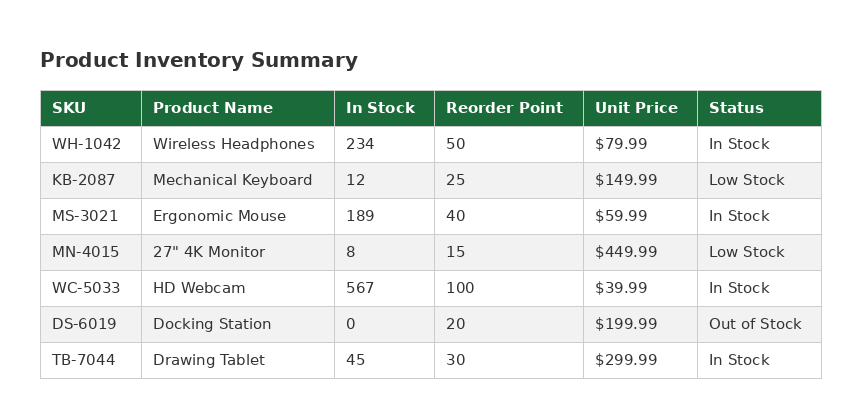

Best for: Any image with a table, especially screenshots and complex layouts.
Skip the manual work — extract tables in seconds
Get TableGrab FreeFree tier included · No account required
Tips for better extraction accuracy
- Crop tightly — select just the table, not surrounding text or UI elements.
- Use high resolution — zooming in before screenshotting gives OCR more pixels to work with.
- Check the preview — TableGrab lets you review and edit cells before exporting, so you can catch and fix any errors.