How to Extract a Table from a PDF
PDFs are great for sharing documents but terrible for working with data. If you've ever tried to copy a table from a PDF into Excel, you know the pain — columns collapse, rows merge, and formatting breaks. Here are four ways to solve this, from manual to instant.
Method 1: Copy and paste (manual)
Select the table in your PDF viewer, copy it, and paste into Excel or Google Sheets. This sometimes works for simple tables, but usually produces a single-column mess. You'll spend 5–15 minutes cleaning up each table.
Best for: Simple, small tables with no merged cells.
Method 2: Python with Tabula or Camelot
Libraries like tabula-py and camelot-py can programmatically extract tables from PDFs. You write a script, point it at the PDF, and get a DataFrame back. Accuracy varies widely depending on the PDF structure.
Best for: Developers processing many PDFs in a pipeline.
Method 3: Online conversion tools
Websites like Zamzar or Smallpdf offer PDF-to-Excel conversion. Upload your file, wait, download the result. Privacy is a concern since your document is processed on someone else's server, and results are often poor for complex layouts.
Best for: One-off conversions where privacy isn't a concern.
Method 4: Screenshot and extract with TableGrab
Open your PDF, take a screenshot of the table, and let TableGrab extract it instantly. No uploading the entire document — just capture the table you need. You get a structured result you can review, edit, and export as CSV, Excel, or TSV.
This works with any PDF viewer, any operating system, and handles complex layouts that trip up other tools — merged headers, multi-line cells, and tables embedded in reports.
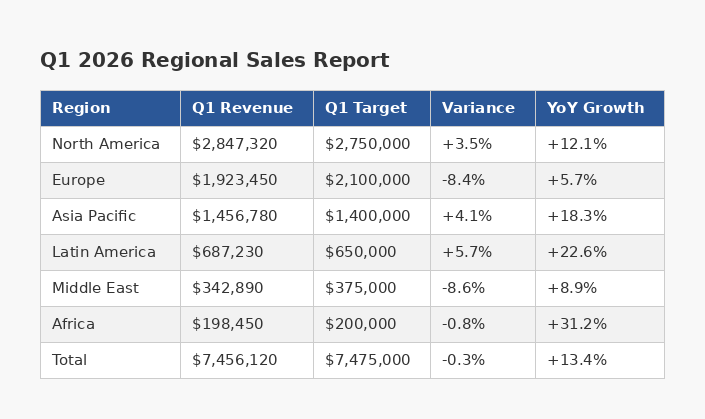
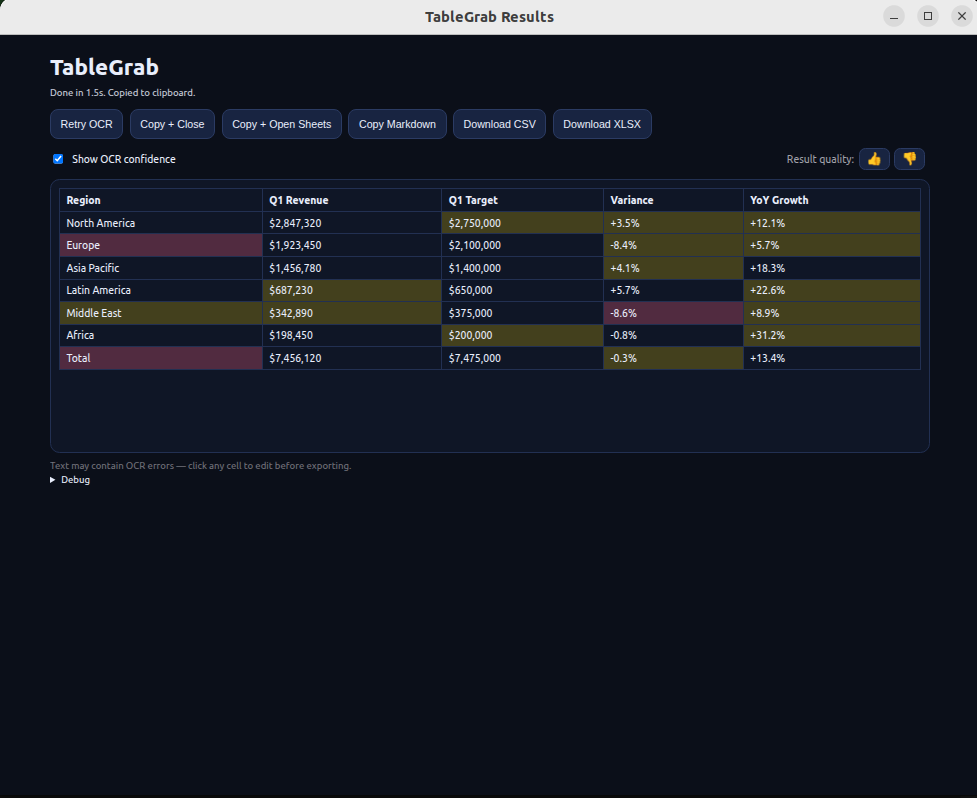
Best for: Quick, accurate extraction from any PDF without uploading your documents.
Skip the manual work — extract tables in seconds
Get TableGrab FreeFree tier included · No account required
Which method should you choose?
If you need to extract a table right now without writing code or uploading sensitive documents, the screenshot approach is the fastest. For batch processing hundreds of PDFs, a Python script makes more sense. For a one-off table from a simple PDF, even copy-paste might work.
The key advantage of the screenshot method is that it works with any PDF — scanned documents, image-based PDFs, password-protected files — because you're extracting from what's visible on screen, not parsing the file format.